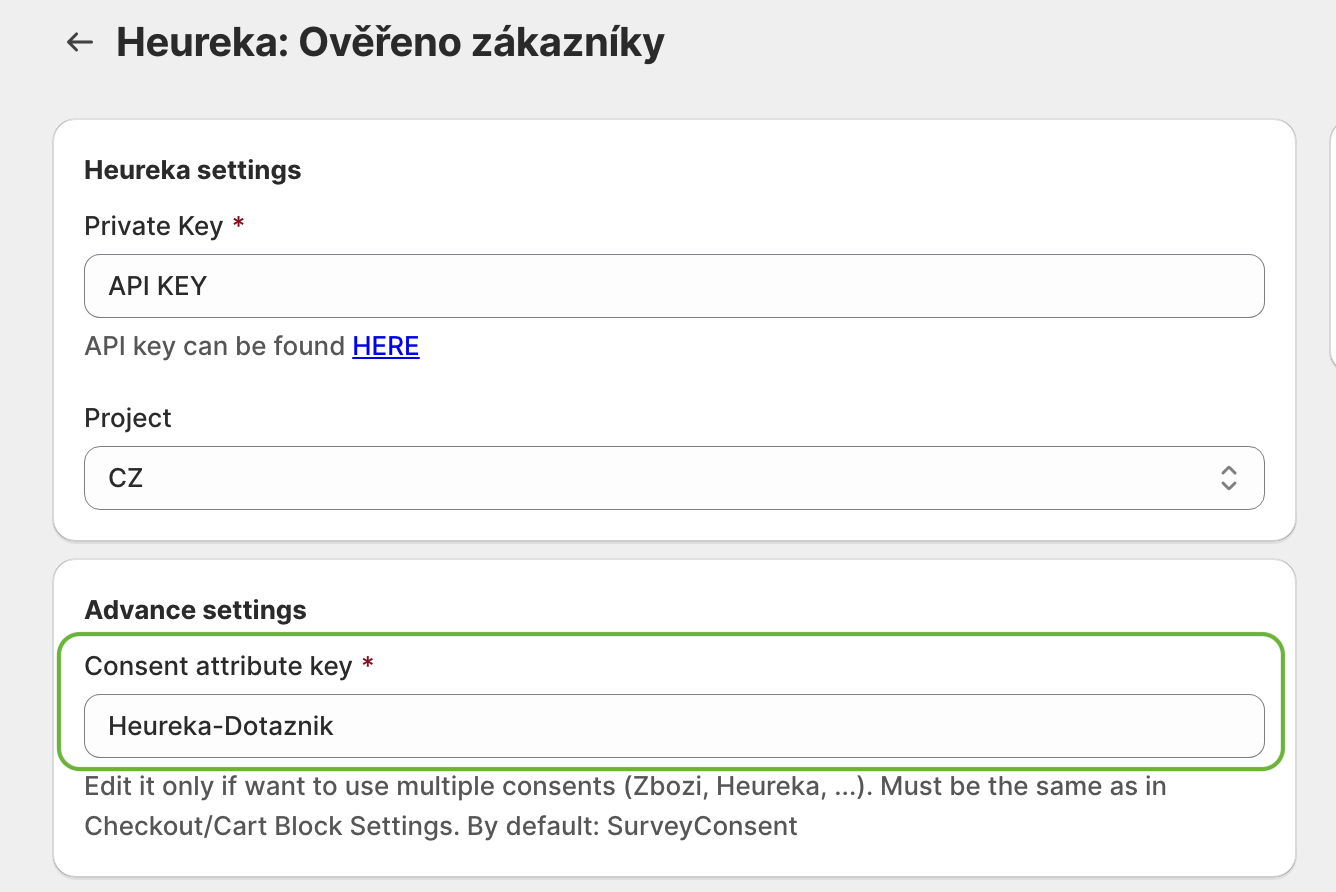
Feedyio app installed on your Shopify store
An active account with Heureka, Zboží.cz, or Árukereső
In your Shopify admin, go to Online Store → Themes
Click Customize on your active theme
In the top dropdown of the Theme Editor, switch from Home page to Cart
You should now see your cart page template
In the left sidebar, find the Cart section
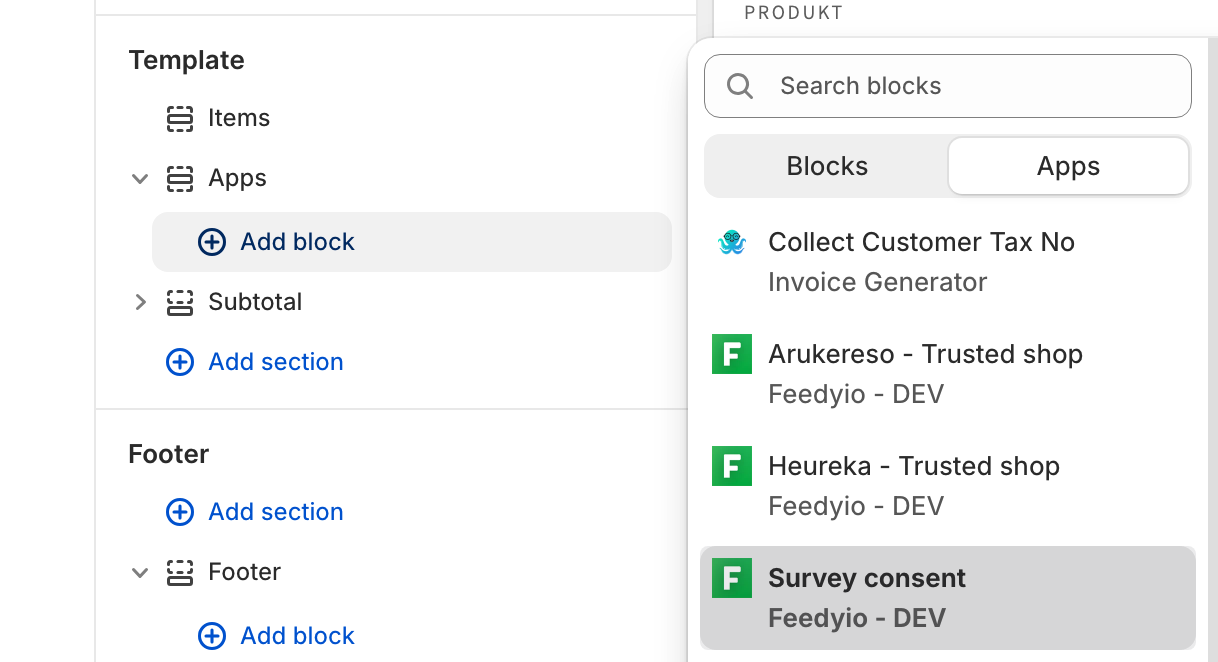
Click Add block (or Add app block)
From the list of available app blocks, select the widget Survey Consent
In the block settings panel, you can customize the consent checkbox text displayed to your customers
Position the block where you want it to appear within the cart — we recommend placing it near the checkout button so customers can easily see it before completing their order
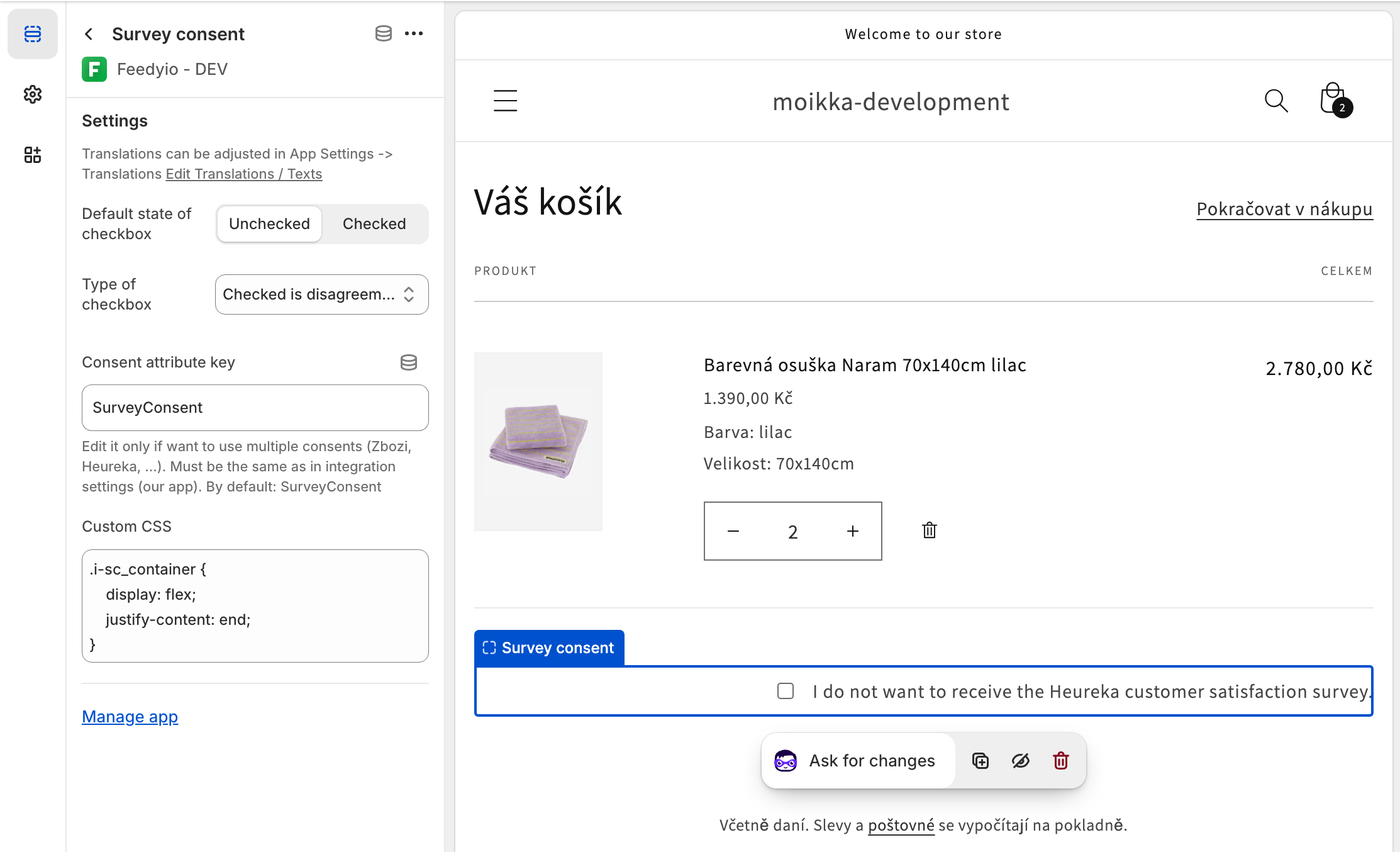
Click Save in the top right corner of the Theme Editor. The consent checkbox will now appear on your cart page.
You can add as many Consent Banner blocks as you need — for example, one for each service (Heureka, Zboží.cz, Árukereső). Simply repeat Steps 3–5 for each service.
When adding multiple consent checkboxes, make sure to change the Consent attribute key in the block settings for each one. Each service must have a unique attribute key so that consents are tracked correctly and independently. This key must be added in the integration
A customer adds products to their cart
Before checkout, they see a consent checkbox (e.g., "I agree to receive a satisfaction survey from Heureka")
If the customer checks the box and completes the purchase, their consent is recorded
The respective service (Heureka / Zboží.cz / Árukereső) will send them a satisfaction survey after delivery
Consent checkbox not showing? Make sure you are viewing the Cart page in the Theme Editor, not the Home page.
Can't find the app block? Ensure the Feedyio app is installed and up to date. Try refreshing the Theme Editor.
Surveys not being sent? Verify that your Heureka / Zboží.cz / Árukereső account is properly connected in the Feedyio app settings.