Open the Feedyio app in your Shopify admin.
Click Create Feed.
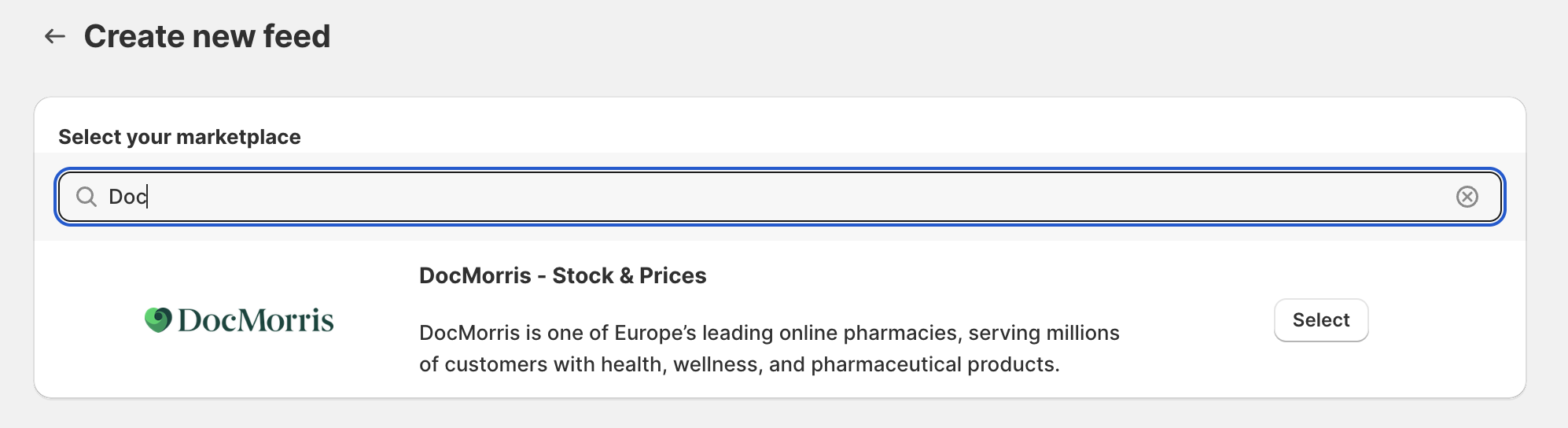
From the template list, select DocMorris – Stock & Prices.
Feedyio lets you configure how prices are exported to DocMorris. You can:

Use the current Shopify store price (default).
Increase or decrease prices by:
A flat amount (e.g., +2 EUR or –1 EUR)
A percentage (e.g., +10% or –5%)
Send the undiscounted price (ignoring Shopify’s discounts). Compare At Price has been used.
👉 This is useful if you want to adjust pricing specifically for DocMorris, or to maintain consistent margins across marketplaces.

You can exclude any products that you don’t want to appear in your DocMorris feed.
Exclusions can be set based on many conditions, such as:
Tags
Collections
Product category
Price
Out-of-stock products
Gift cards
👉 If you only want to include specific products in the feed, simply assign them a product tag in Shopify and use that tag as a filter in Feedyio.
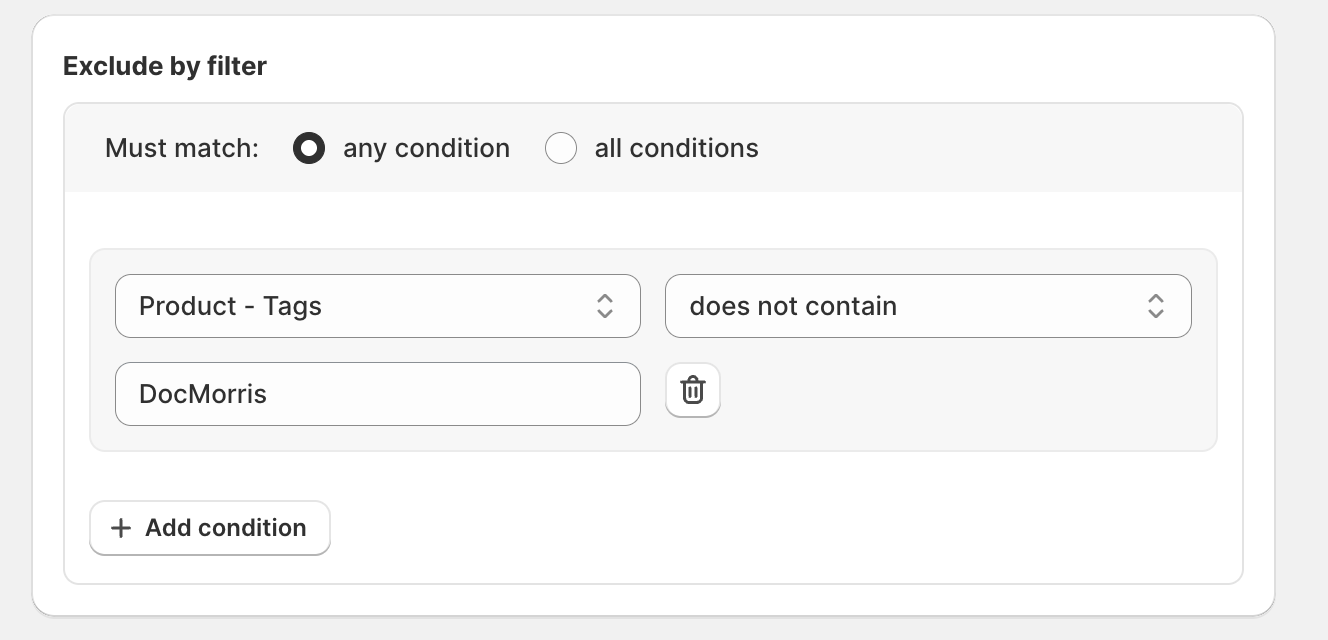
This way, only valid and compliant products are exported and sent to the DocMorris marketplace.

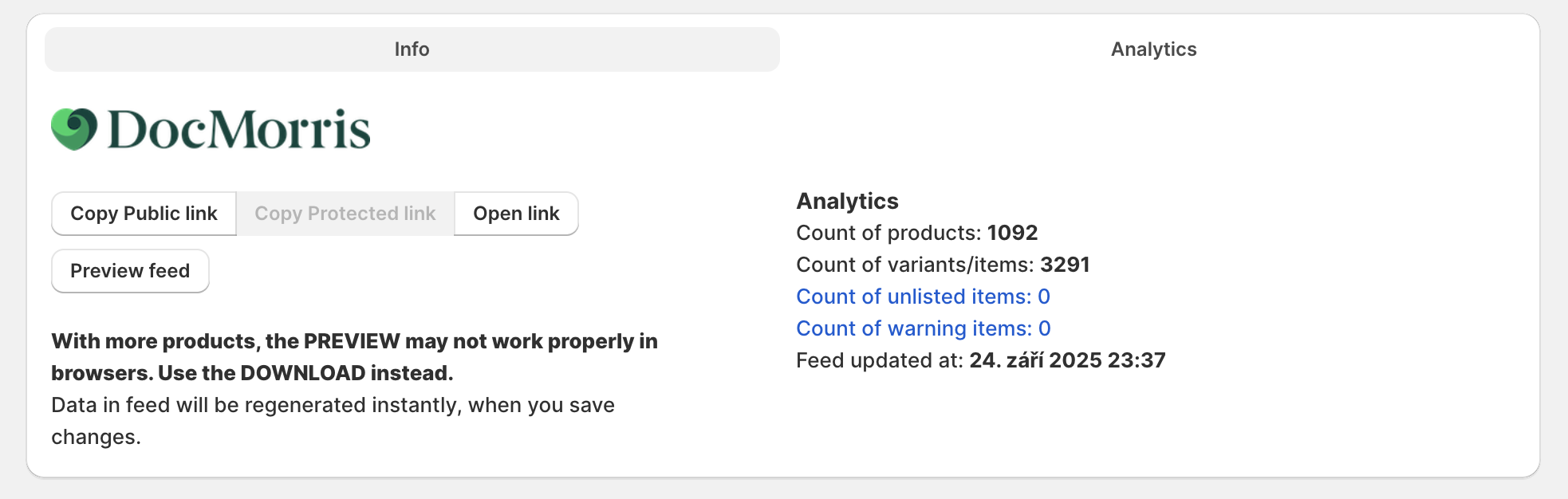
In the top-right corner, click Save.
Review the feed output with the preview button.
Copy the feed URL by clicking Copy public link.
Send this feed URL to DocMorris.
In Shopify, go to Products → select Product → select Variant and add the barcode (EAN/UPC) in the Inventory section.
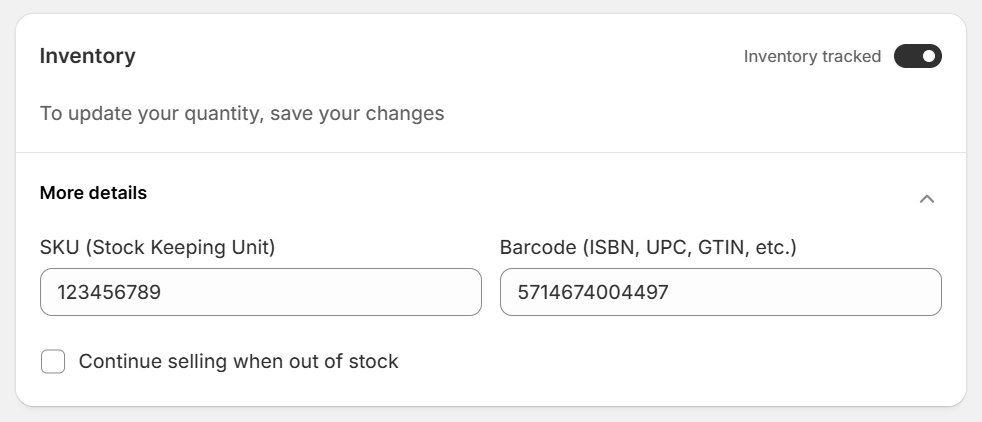
Once added, synchronize your products so that Feedyio can include these values in the feed.
Product data updates are controlled by your sync settings.
By default, Feedyio synchronizes products once per day.
Hourly synchronization is available on subscription plans and can be enabled in the app settings.
If you need to update products immediately, you can run a manual synchronization:
Go to the Feeds page in Feedyio.
In the top-right corner, click Sync products with Shopify.
By default, Feedyio synchronizes products once per day.
If you need stock to be updated more frequently, change your sync settings to hourly synchronization (available on subscription plans).
After updating sync settings, you can also trigger a manual synchronization to push the latest stock immediately.